


Are you struggling with connecting your hearing aids to your iPhone? Don’t worry. This iPhone hearing aid setting guide will help you connect new hearing aids to your iPhone. Let’s get started!
Good hearing health is the key to improved social interactions, enhanced communication, elevated positive health outcomes, and reduced risk of depression. It is obvious that the quality of life degrades with hearing impairment. Even if you suffer from a certain degree of hearing loss, hearing aids serve as a savior.
Hearing aids are electronic devices that amplify sounds, enabling people with hearing loss to hear clearly and take part in daily conversations. However, it is important that these devices are used only to improve hearing and speech comprehension and not to regain original hearing health.
Modern hearing aids come with wireless technology, primarily Bluetooth, making it easier for you to control them from your smartphone without touching them. However, if you are a non-tech-savvy person, you may find it difficult to connect hearing aids to your smartphone.
Among a plethora of smartphone models, most people choose to use iPhones as they offer more out-of-the-box features and are convenient. You may not be aware of the feature that an iPhone provides built-in hearing aid settings.
This article walks you through the step-by-step guide on the iPhone hearing aid setting so that you can effortlessly connect your iPhone to hearing aids.
Understanding the iPhone Hearing Aid Setting
The iPhone hearing aid setting enables you to effortlessly pair your hearing aids with your iPhone and control certain settings, such as volume, background noise, etc. However, it is important to note that your hearing aids must be compatible with your iPhone.
A plethora of hearing aid brands work with the iPhone, including ReSound, Starkey, Phonak, Signia, and Oticon. Some hearing aids are specially designed to pair with iPhones called Made for iPhone (MFi) hearing aids. They leverage Apple’s MFi-licensed technology and Bluetooth to pair with an iPhone, iPad, Apple Watch, or iPad Touch.
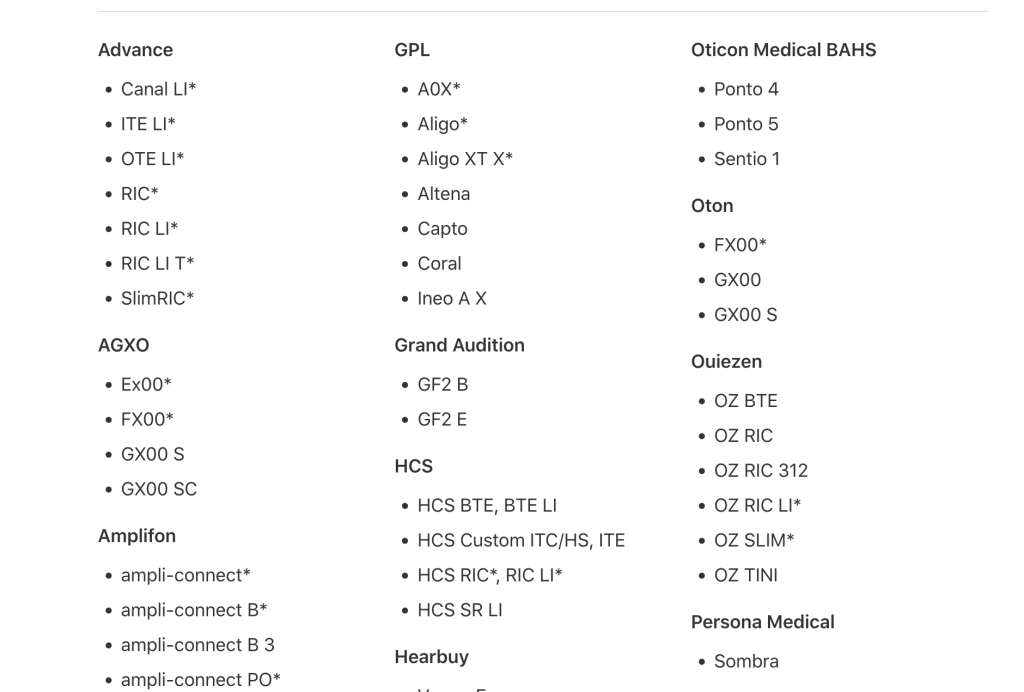
Made for iPhone (MFi), hearing aids are compatible with iPhone 5 or later. Besides, they support other Apple products, such as:
- iPad Pro
- iPad Air
- iPad (4th generation or later)
- iPad Mini
- iPod Touch (4th generation or later)
With iPhone-compatible hearing aids, you can hear phone calls, listen to music, and watch your favorite shows with high-quality and clear sound.
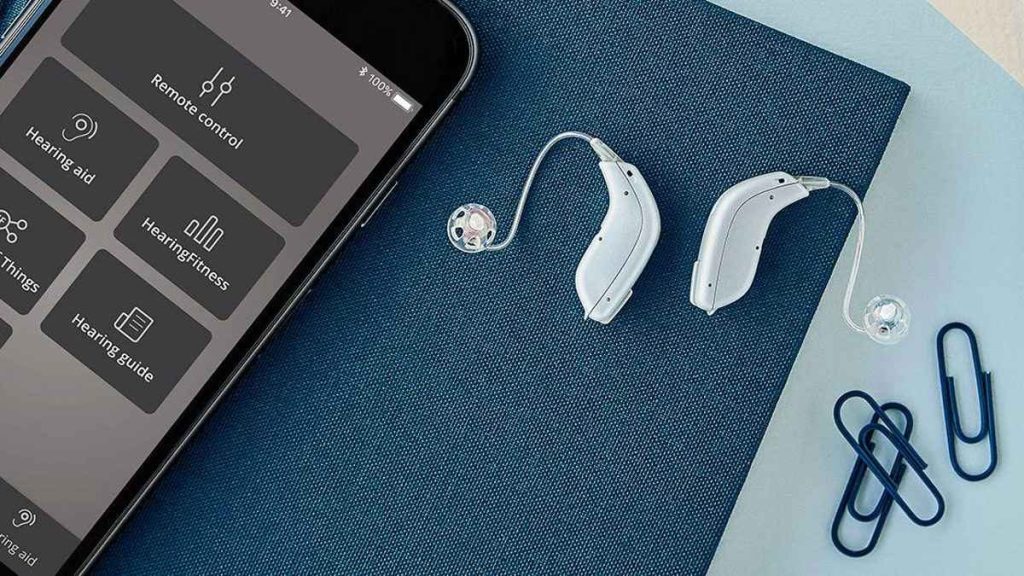
Besides pairing hearing aids, the iPhone offers a lot of other accessibility features for people with hearing impairments. They include:
- Live Listen: This feature turns your iPhone and other iOS-powered devices into a remote microphone, which transmits sounds from your environment to your hearing aids or AirPods.
- Visual Alerts: It makes the LED flash on your iPhone blink when your phone is locked and you receive notifications. Hence, people with hearing impairments can track notifications without missing any when their iPhone’s LED flash blinks.
- RTT Calls: Real-time text (RTT) phone calls provide an instant transmission of a message as soon as you compose it. It lets you send a text message to a recipient during a phone call.
- FaceTime Video Calls: With FaceTime, you can have video calls with other iOS users. Its high-quality video and fast frame rate help people with hearing impairment use sign language to communicate.
- Headphone Accommodations: With this feature, you can customize headphone audio settings. Amplify soft sounds and adjust frequencies as per your hearing needs. More interestingly, the audiogram data from the Health app can be beneficial for audio settings.
Step-by-Step Guide on Accessing the iPhone Hearing Aid Setting
Follow the below steps for the iPhone hearing aid setting to pair your iPhone with your hearing aids:
Step 1: From your iPhone’s home screen, click the “Settings” icon.
Step 2: Look for Bluetooth from Settings. Turning it on will help your iPhone connect with your hearing aids. Turn Bluetooth on by clicking the toggle switch. Once it is on, the switch turns green.
Step 3: Take your hearing aids and open their battery doors. Refer to the instruction manual if you are unsure about this step. This is applicable for battery-operating hearing aids. For rechargeable hearing aids, place them inside a charging case and wait for a second.
Step 4: Again, from Settings on your iPhone, choose the “Accessibility” icon.
Step 5: Navigate to Hearing by scrolling down. Click the “Hearing Devices” option.
Step 6: Now, close the battery doors of the hearing aids. For rechargeable aids, take them out from the charging case.
Step 7: When you go to the “Hearing Devices” screen, you can see that your iPhone is searching for compatible hearing aids. After the search is completed, your iPhone will list the name of your hearing aids. Tap it as soon as you see it.
Step 8: Next, the iPhone prompts a pairing request. Click “Pair” and wait for a minute.
Voila! You have successfully connected your iPhone to hearing aids. If you turn off your hearing aids, they may disconnect from your iPhone. After you turn them on, they automatically connect to your iPhone.
Adjustments and Additional Features
As you have hearing aids connected to your iPhone, it’s time to explore more features and some sound adjustments for a better hearing experience. You can now control your hearing aids with your iPhone.
Adjusting Volume and Sound Balance
The iPhone provides a feature for adjusting the volume of the hearing aids on both sides (left and right). To access this feature, go to Settings → Accessibility → Hearing Devices.
Besides, you can do more:
- Check the battery life of your aids.
- Choose an audio preset, such as a restaurant or party, for optimal sound and a better hearing experience.
- Unpair hearing devices with a single click.
More interestingly, you can access these features from your iPhone’s home screen with the help of Accessibility Shortcut.
Live-Listen Option (What It Is/What It Does)
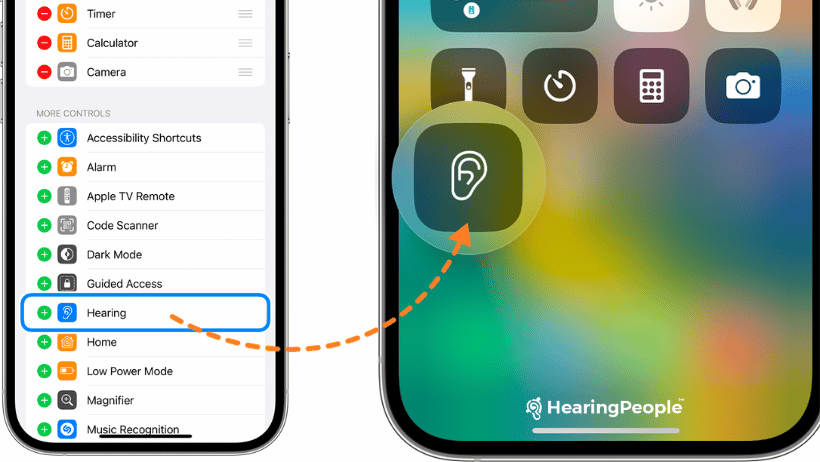
Live Listen enables you to stream sound from your iPhone’s microphone to hearing aids. It turns your iPhone into a remote microphone. Simply place your iPhone close to the sound source and hear clear sounds from your hearing aids. This feature comes in handy when you want to focus on a specific conversation or hear someone from a distance.
Integration with Audio Streaming Services and Phone Calls
Enjoy the feature of streaming audio directly from your iPhone to hearing aids. You can listen to music, podcasts, Siri, and much more. Seamless audio streaming is possible because of Bluetooth connectivity. In addition, avoid touching the phone while taking calls, as you can accomplish this with your hearing aids.
Connecting with Other Devices like an iPad
Not only to iPhones, but hearing aids also connect to other Bluetooth-enabled Apple devices, such as iPads, Apple Watches, etc. You can also find hearing aids that support connectivity to multiple devices.
What to Do If Hearing Aids Won’t Pair with the iPhone? (Troubleshooting)
The most common problem you may face is hearing aids not pairing with your iPhone. Another problem is the battery life issues of your iPhone and hearing aids. Let us troubleshoot both of these problems.
If you have difficulty pairing hearing aids with your iPhone, try these two solutions:
1. Software Update
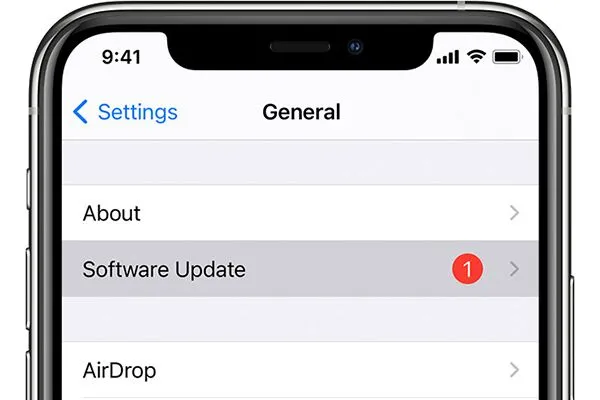
Step 1: Go to “Settings”.
Step 2: Navigate to “General” and click it.
Step 3: Choose “Software Update”. If there are any updates available, you can install them and keep your iPhone’s software up-to-date.
2. Check Connectivity
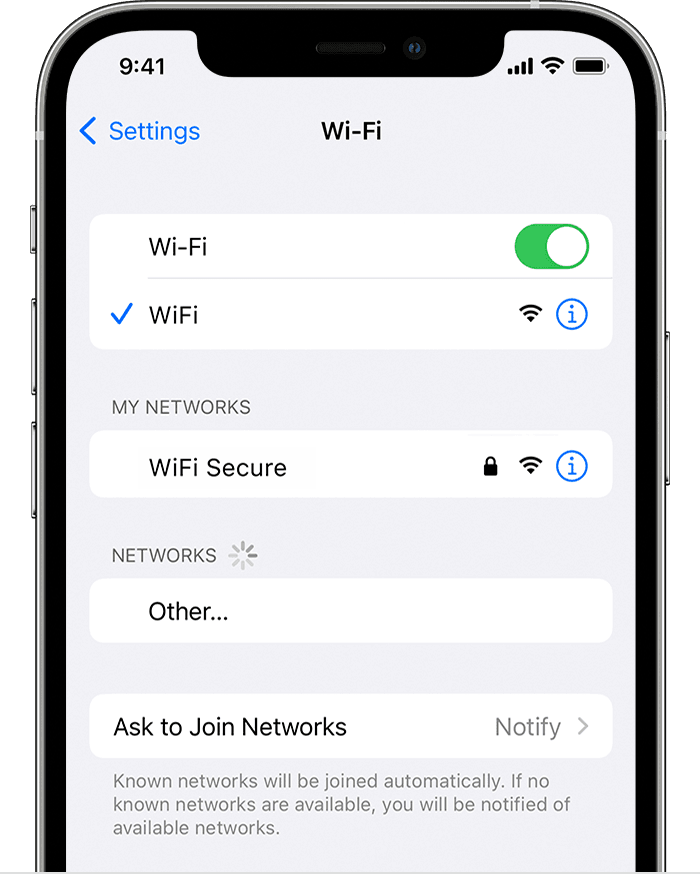
Here are some solutions to ensure the connectivity:
- Check whether your phone’s Bluetooth is on.
- Verify that your hearing aids are turned on and are in pairing mode.
- Check whether your hearing aids are already connected to another device. If yes, disconnect them first from that device before connecting them to your iPhone.
- Restart both the iPhone and hearing aids.
- Check if there is interference from other Bluetooth devices or WiFi signals.
Conclusion
This was all about the iPhone hearing aid setting. The built-in capability of the iPhone makes it easy to pair it with hearing aids. However, you must use iPhone-compatible or Made for iPhone (MFi) hearing aids. After successful connectivity, you can enjoy audio streaming from Phone, Siri, Apple Podcasts, Apple TV, and much more.
So, if you use an iPhone, you must think about buying compatible hearing aids, as they together improve your hearing experience and the overall quality of life.
Frequently Asked Questions:
- I have an Android, is there a hearing aid setting for my phone?
Yes, Android phones also come with the feature of a hearing aid compatibility setting. To access this setting, go to Settings → Accessibility → Hearing → Hearing aid compatibility. Search for your hearing aids and pair them with a single click. Ensure that your hearing aids are in the pairing mode. - How do I disconnect my hearing aids from my iPhone?
To disconnect your hearing aids from the iPhone, go to Settings → Accessibility → Hearing → Hearing Devices. Search for your hearing aids and click them. Later, tap “Forget This Device” or “Disconnect”. This will disconnect your hearing aids from your iPhone. To reconnect, you need to follow all the above steps. However, if you simply turn off Bluetooth and your hearing aids, you can reconnect them just by turning them on.

Florida License: AS-2471 – NPI: 1992749147
Ivonne Baixeras is a Florida-Licensed Hearing Instrument Specialist with a track record of almost three decades treating hearing problems in Miami-Dade County and serving the needs of thousands of satisfied patients. Ivonne is a graduate of both Miami-Dade College & Florida International University and worked for many years at the largest national chain of hearing clinics in the US where she's received multiple awards.